Share or update a canvas
Share, clone, edit, and delete canvases, and manage external share links.
Share a canvas
You can share a canvas with your ElemBio Cloud organization or generate an external share link for read-only access.
Share with your organization
- From the Dashboard, select the three-dot menu on the canvas card, and then select Share.
- Toggle the access level to Full organization can view and edit.
- Select Save.
All members of your organization can now see the canvas in the Shared Canvases tab on the dashboard.
To make the canvas private again, toggle the access level back to Private: only I can view and edit.
Generate an external share link
An external share link grants read-only access to the canvas in which recipients do not need an ElemBio Cloud account to access. When a canvas is opened through an external share link, you can:
- Navigate all visualization tabs (Flow Cell, Montage, Cell Table).
- Adjust visualization settings such as channel visibility, colors, and boundaries.
- Export the current view as an image.
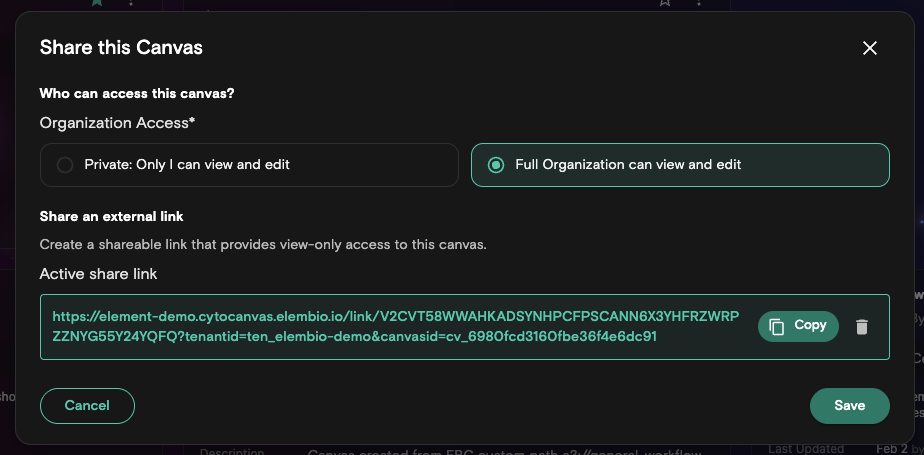
Create a share link
- From the Dashboard, locate the canvas that you want to share.
- Select the three-dot menu on the canvas card, and then select Share.
- In the Share dialog, select Create Link.
- Copy the generated link and share it with your recipient.
- Select Copy and share the link as needed.
Disable a previously shared link
- From the Dashboard, locate the canvas that you want to manage.
- Select the three-dot menu on the canvas card, and then select Share.
- Select the trash icon beside the link.
- Confirm the deletion.
The link is removed and anonymous access to the visualization no longer exists.
Manage a canvas
Edit a canvas
- From the Dashboard, locate the canvas that you want to edit.
- Select the three-dot menu on the canvas card, and then select Manage.
- Update the Name or Description of the canvas.
- Select Save
The canvas is updated with the new details.
Clone a canvas
Cloning creates an independent copy of a canvas, including its views and cell groups. The cloned canvas is named with a (Clone) suffix.
- From the Dashboard, locate the canvas that you want to clone.
- Select the three-dot menu on the canvas card, and then select Clone.
Delete a canvas
Deleting a canvas permanently removes the canvas and all of its saved views and cell groups. Only the canvas owner can delete a canvas.
- From the Dashboard, locate the canvas that you want to delete.
- Select the three-dot menu on the canvas card, and then select Delete.
- Select Delete to confirm the deletion.
The canvas is immediately removed.
Deleting a canvas cannot be undone. All saved views and cell groups associated with the canvas are permanently removed.