Sandbox practices
Reuse one sandbox across chats, save its outputs, and record its packages so you can reproduce the analysis.
The agent works in one sandbox. Loaded data and installed packages stay in that sandbox between steps, and between chats.
Where things run
Your chat lives in your AI app. The analysis runs in a sandbox in your cloud region, next to your run data.
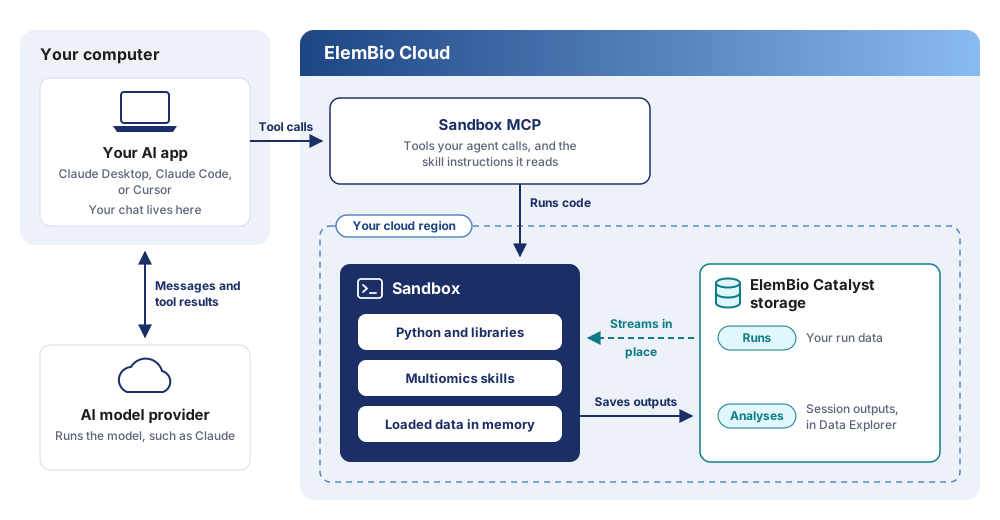
- Your run data stays in your cloud region. The sandbox reads it in place. Only what the agent prints, plots, or downloads leaves the region.
- The AI model provider sees messages and tool results. It reads what you type and what the tools return, not the run data itself.
- Skills come with the sandbox. The Sandbox MCP and the sandbox provide the multiomics skills, so you do not install them on your computer.
Keep the sandbox you have
- Do not ask for a new sandbox. A new sandbox drops the loaded data and installed packages. If a step looks stuck, send
Check status and show what is finished. - Reuse it in a new chat. Ask the agent for the sandbox ID. In the new chat, send
Use sandbox <sandbox id>.with the same account. The new chat picks up the loaded data and installed packages. You can reuse a sandbox for up to 7 days after it was last used. - Interrupt, do not end. Send
Interrupt the running step.An interrupt keeps the loaded data. Ending the sandbox drops it. An idle sandbox hibernates on its own, so you do not need to end it to save cost.
Load data
- Mount the run. Tell the agent to mount the run, not copy it. Mounting reads the data in place.
- Load one large run at a time. Memory grows up to 64 GiB, and loaded data counts toward that limit. Tell the agent to drop unused objects before the next load.
Save outputs
Tell the agent to save figures, tables, code, and parameters to the session outputs. Open them in Data Explorer, in your Analyses bucket.
Download links in the chat expire, and anyone with a link can use it, so do not forward them.
Reproduce the package environment
To reproduce an analysis, you need the same packages at the same versions. A new sandbox starts from the pre-installed software only, so packages the agent installed in an earlier sandbox are gone. Keep a package manifest with the analysis, so you or a colleague can rebuild the environment and rerun the notebook later.
The manifest lists only the packages the agent added, each pinned to an exact version. Do not reinstall a full pip freeze. The pre-installed versions change when the sandbox image updates, and pinning every package can break the new image. Keep the full list only to compare versions when a result changes.
Build the manifest as you work:
Keep a package manifest for this analysis.
Each time you install a package, add it to requirements-added.txt as name==version, with the exact version installed.
List only packages you installed, not the ones already in the sandbox.
Also save the output of pip freeze to pip-freeze-full.txt.
Save both files to the session outputs, and update them after every install.
Rebuild the environment in a new sandbox. Paste the contents of requirements-added.txt, or name its path in your Analyses bucket:
In an ElemBio Cloud sandbox, install these packages with the exact versions:
<contents of requirements-added.txt>
Confirm each installed version, and report any package that failed to install.
Export the manifest with the notebook, and add it to a handoff so the new chat installs the packages before the next step.