Sandbox
Run analysis in ElemBio Cloud through a dedicated sandbox environment connected to your AI application of choice.
An ElemBio Cloud sandbox provides a managed Python environment placed directly alongside your data in ElemBio Cloud. A sandbox is created within a chat session of your AI application like Claude Desktop, Claude Code, or Cursor. Once created, the sandbox stays available for your analysis, and you can reuse it in a new chat by its sandbox ID.
To use a sandbox, you need an ElemBio Catalyst™ subscription and the Sandbox MCP installed and configured in your AI app. The Sandbox MCP is not a sandbox itself, but the means for connecting to and using one — see Sandbox MCP tools for a complete list of its capabilities.
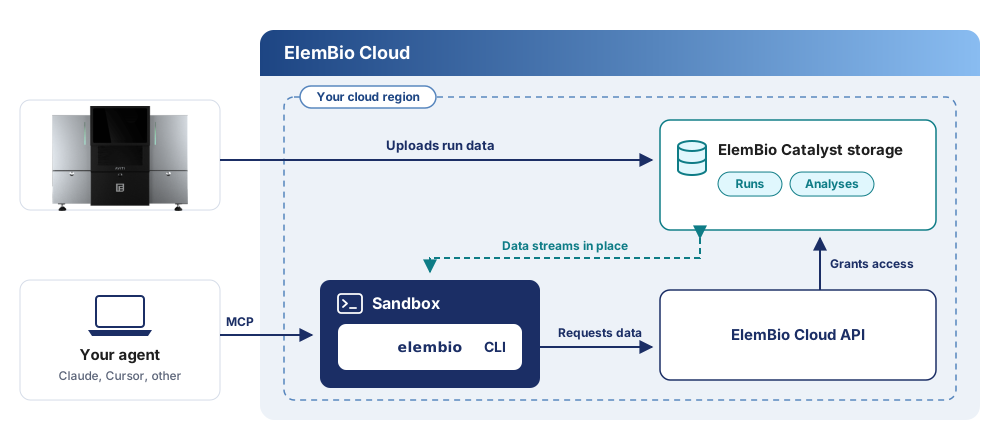
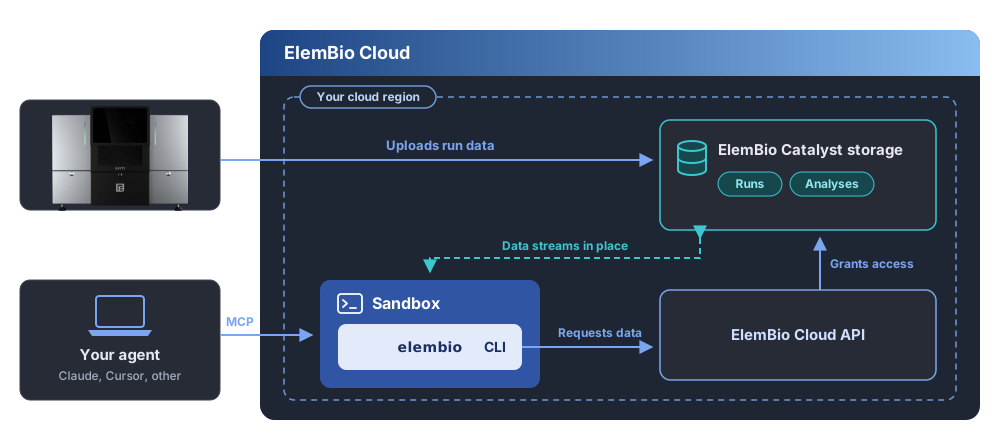
A sandbox requires an ElemBio Catalyst subscription and the Sandbox MCP installed in your AI app.
Core benefits
- Immediate access to your data: Your agent mounts runs, executions, and storage connections and starts reading right away, with no download step. Files stream on demand, so large Spatial Data Objects stay in ElemBio Cloud.
- Performance that scales: Each sandbox starts with 16 CPU cores for parallel work. Memory grows automatically as an analysis needs it, up to 64 GiB, and shrinks again when usage drops.
- Your access: The ElemBio CLI (
elembio) in a sandbox is signed in as you, so your agent reaches the same data you can. - Ready to analyze: The image includes the Element Biosciences analysis packages and the libraries that multiomics skills expect. See Pre-installed software.
- Work that persists: A long-lived Python kernel keeps loaded data, variables, and installed packages between messages. An idle sandbox pauses and later resumes where it left off.
- Isolated compute: Each sandbox runs in its own virtual machine and belongs to your organization. Code your agent writes runs there, not on your computer. See Security and isolation.
How your agent uses a sandbox
Your agent works in a sandbox through tools that the Sandbox MCP provides. A typical analysis follows this sequence:
- Your agent creates a sandbox and reuses it for the rest of the session.
- Your agent mounts the run or execution you name with the ElemBio CLI mount commands.
- Your agent loads the Spatial Data Object and follows multiomics skills for QC, normalization, and downstream analysis.
- Your agent saves figures and tables, then shares them in the chat.
For each tool your agent can call, see Sandbox MCP tools.
Security and isolation
Your agent writes and runs code for you. A sandbox gives that code a dedicated place to run, away from your computer, which reduces the chance that a mistaken step causes unintended changes.
- Separate from your computer: Code runs in the sandbox, not on your computer. A wrong command cannot change or delete your local files or the software installed on your computer.
- Read-only access to your data: Your agent mounts runs, executions, and storage as read-only directories. Analysis code reads your source data in place and cannot change or delete it.
- No stored cloud credentials: The sandbox holds no cloud storage keys. Your agent reaches data only through the ElemBio™ CLI, which is signed in as you, so your existing ElemBio Cloud permissions apply.
- Browser sign-in: You sign in to ElemBio Cloud in your browser. You do not paste an API key or password into the chat.
- Outputs in a separate location: Your agent saves results to a session folder in your organization's Analyses bucket, apart from your source data.
- Destruction only on request: Your agent ends a sandbox only when you ask.
The sandbox protects your computer and your source data, but it does not review what your agent does. Check results before you rely on them. Your AI model provider sees your messages and tool results, but not the run data itself. For details, see Where things run.
Sandbox lifecycle
Each sandbox follows a standard lifecycle during a session:
- One sandbox per analysis: Your agent starts one sandbox when your chat begins and uses it for all tasks in that chat. To continue in a new chat, give your agent the sandbox ID. Sandbox startup usually takes a few seconds.
- Single-threaded execution: The sandbox is limited to executing one task at a time. Additional requests wait in a queue.
- Long-running tasks: Tasks can run in the background for long periods. Your agent checks for results when needed, and an active task keeps the sandbox awake.
- Idle hibernation: When activity stops, the sandbox hibernates to conserve compute resources. Hibernation preserves variables and loaded data in memory. The next task wakes the sandbox automatically.
- Permanent termination: Your agent destroys the sandbox only on explicit request. Ending a sandbox is permanent.
Files and data
- Storage and persistence: The sandbox saves session outputs to the ElemBio Catalyst Analyses bucket for your organization. You can view these files in Data Explorer or download them with ElemBio CLI storage commands.
- File transfers: Your agent creates secure download links to share files in the chat. To send a file from your computer to the sandbox, your agent creates an upload link.
- Direct data streaming: Your agent mounts datasets directly from ElemBio Cloud. Mounting streams files without local file size limits and operates faster than uploading.
Compute and memory
- Each sandbox starts with 16 CPU cores. The number of cores is subject to change and might increase.
- Memory scales automatically based on workload. The sandbox expands memory up to 64 GiB under heavy loads and releases unused memory when demand drops.
- Resumed sandboxes retain data from earlier tasks in memory. Retained data counts toward the 64 GiB limit. Before you load a large dataset, instruct your agent to clear unneeded variables or start a fresh session.