Explore multiomic visualizations
Navigate the flow cell, visualize assay data, and analyze spatial patterns in CytoCanvas™.
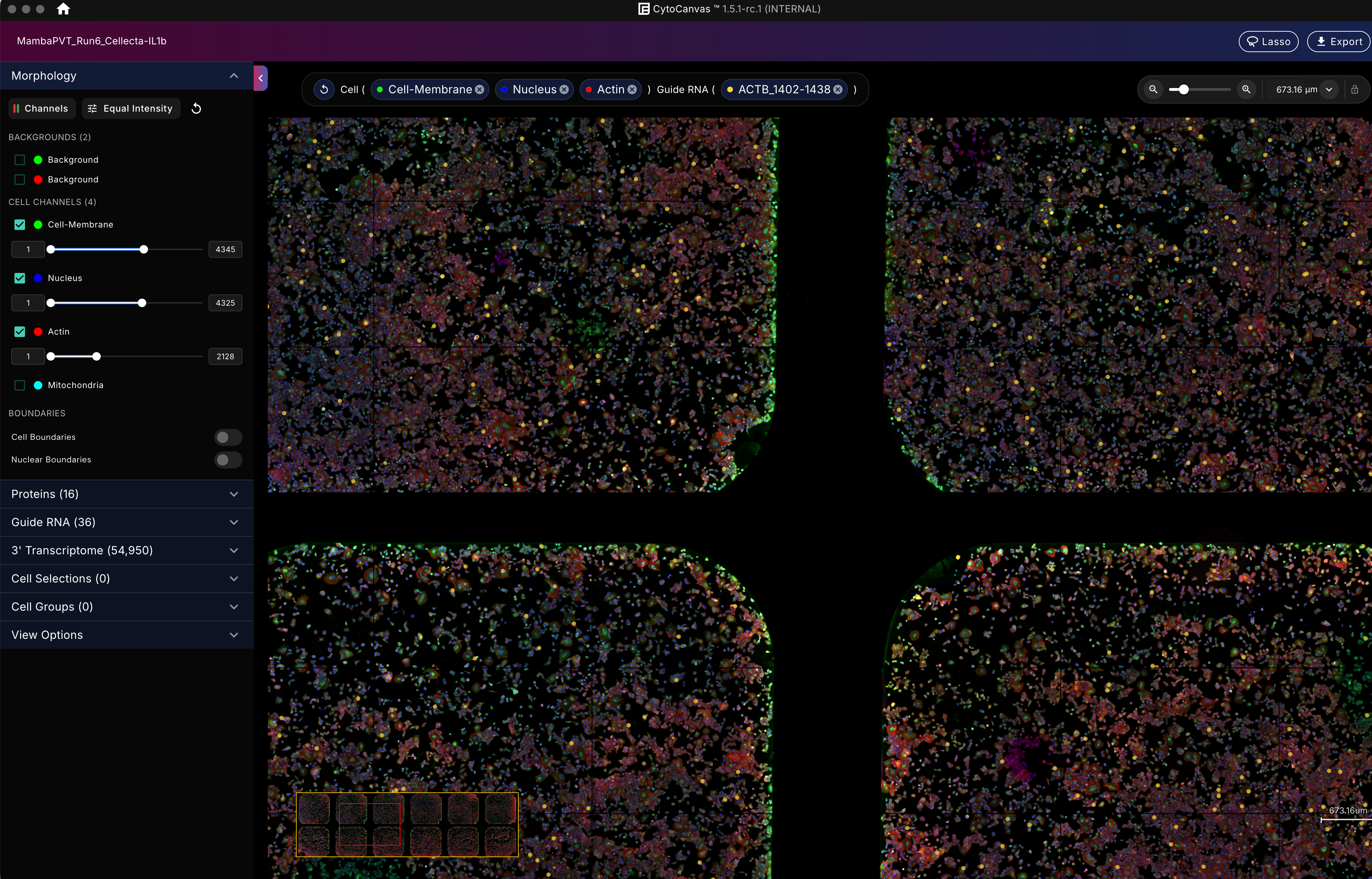
CytoCanvas displays the full spatial layout of a flow cell. Use the filter panel to explore your data — the sections available depend on the assays in your run.
- Navigate the flow cell — zoom in and out and move between wells to inspect cell morphology, protein markers, and transcript locations.
- Visualize and adjust channels — toggle channels, adjust contrast, overlay cell and nuclear boundaries, and assign custom colors.
- Analyze spatial patterns — verify segmentation accuracy, check for background signal, and explore the spatial distribution of RNA transcripts and proteins.
Cell morphology and boundaries
All runs include the Morphology panel, where you can view Cell Paint images and overlay cell and nuclear boundaries to verify segmentation accuracy.
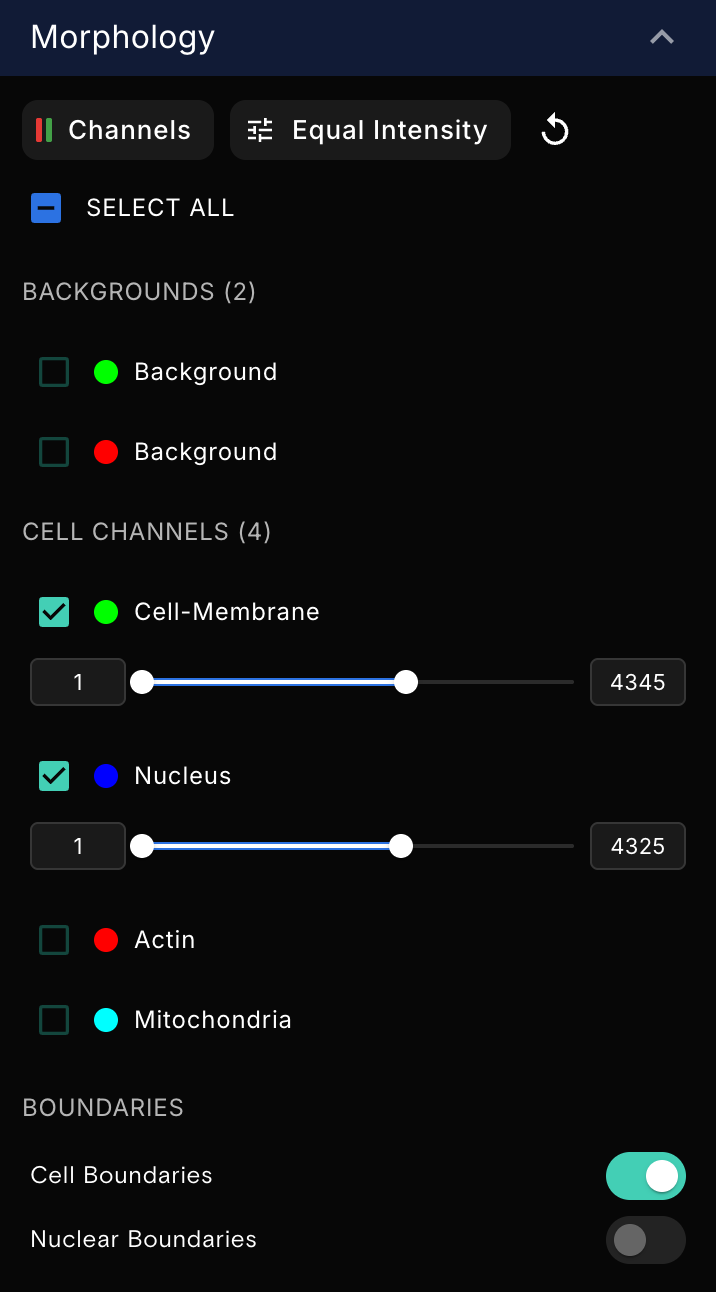
- Select or clear a channel checkbox to show or hide that channel.
- Select the color swatch to assign a custom color to a channel.
- Drag the contrast slider handles to set the minimum and maximum intensity for a channel.
- Select Channels to show which imaging color (red or green) each target was acquired in. Compare a target against the background image of the same color to check for background signal.
- With multiple channels on, select Equal Intensity to keep all channels at the same relative intensity.
- Turn on Cell Boundaries or Nuclear Boundaries to overlay segmentation outlines.
Protein channels
If your run includes a protein panel, the Protein filter section appears, where you can view immunofluorescence images of protein targets. Targets are organized by panel: custom proteins and fixed protein panels.
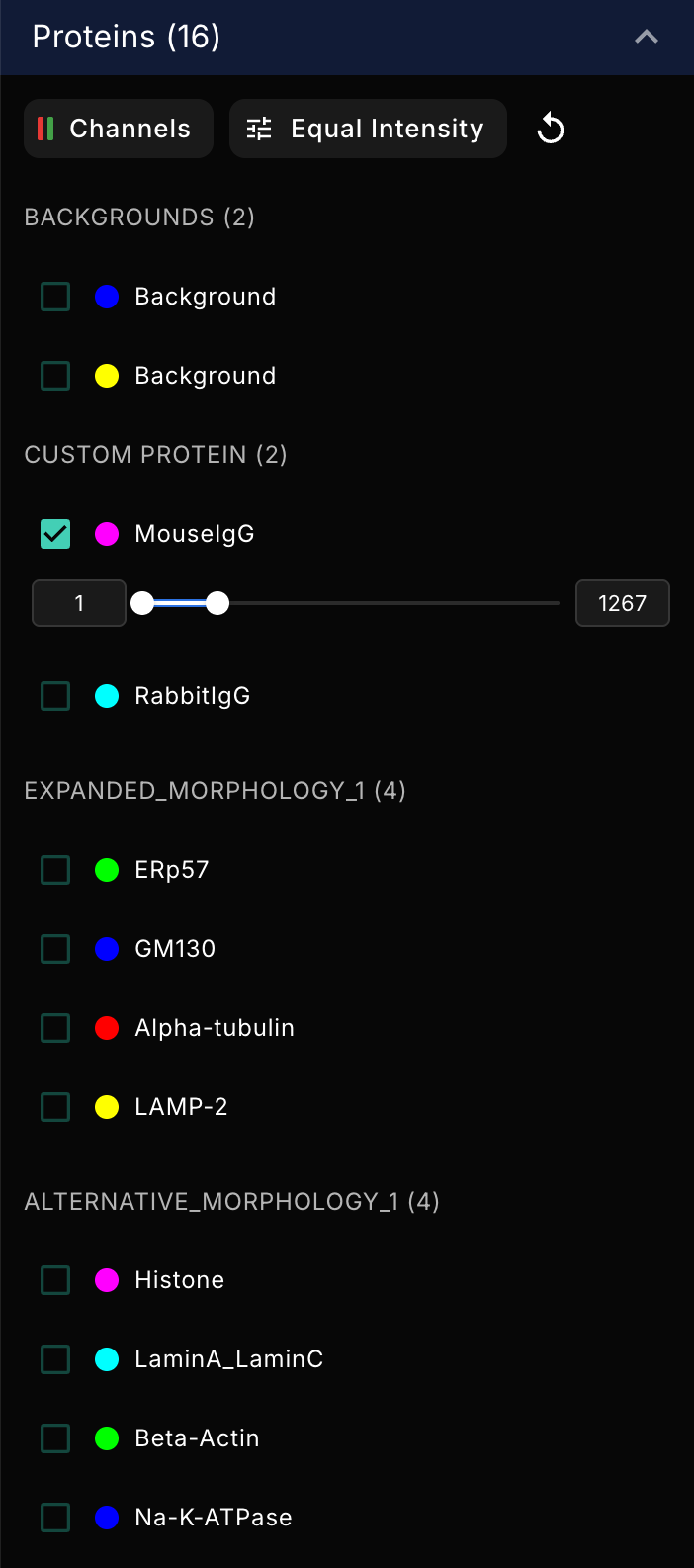
- Select or clear a target checkbox to show or hide it on the canvas.
- Select the color swatch to assign a custom color to a target.
- Drag the contrast slider handles to set the minimum and maximum intensity for a target.
- Select Channels to show which imaging color (red or green) each target was acquired in. Compare a target against the background image of the same color to check for background signal.
- With multiple targets on, select Equal Intensity to keep all targets at the same relative intensity.
Guide RNA targets
For runs that contain the Guide RNA module, map OPS targets across the flow cell to see where each guide is located relative to cell morphology and other targets.
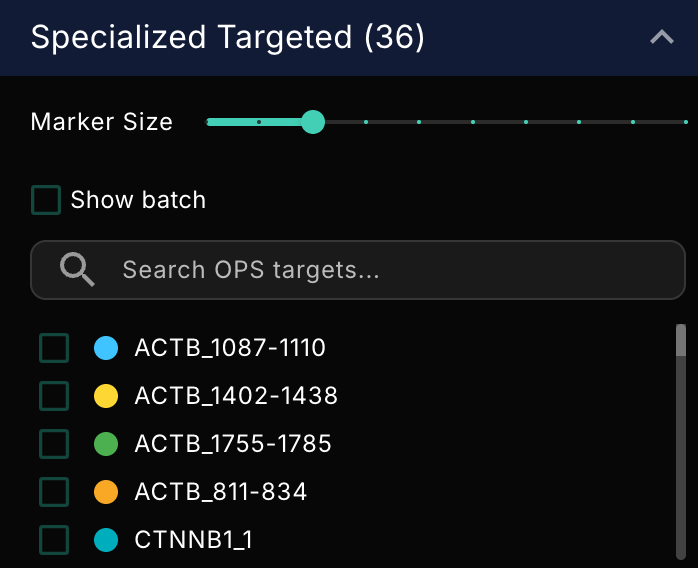
- Select or clear a target checkbox to show or hide it on the canvas.
- Drag the Marker size slider to increase or decrease the size of marker points.
- Use the search bar to locate a specific OPS target.
- Select the color swatch to assign a custom color to a target.
3' Transcriptome genes
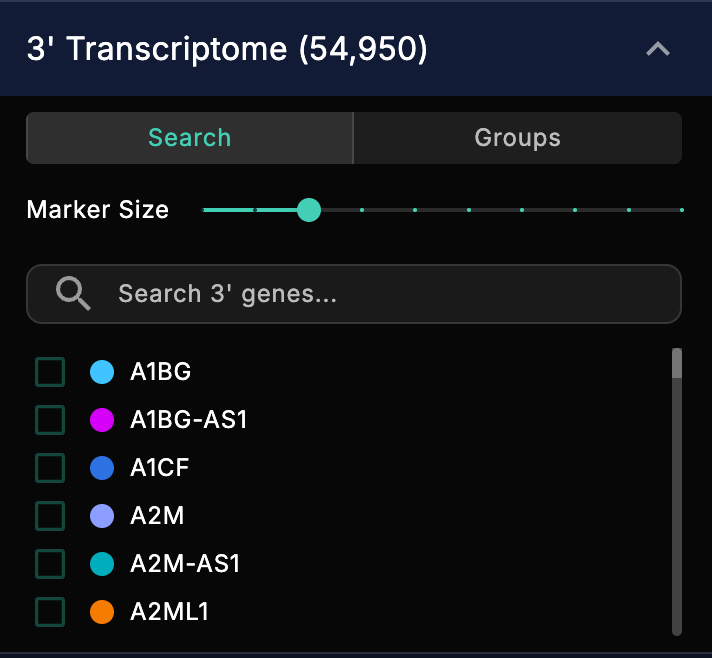
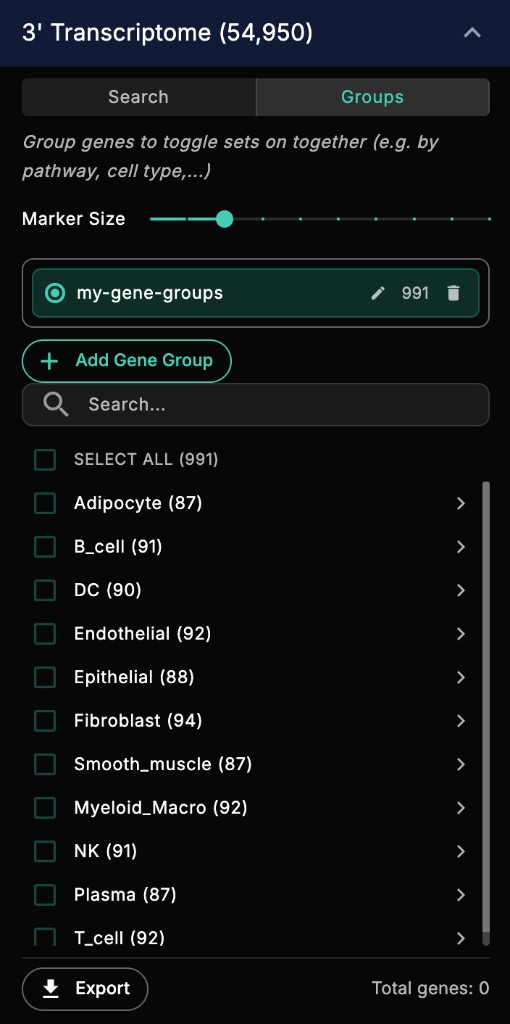
For runs that include the 3' Transcriptome module, the 3' Transcriptome panel shows the total number of detected genes with two tabs: Search and Groups.
3' alignment must complete before gene locations appear on the canvas. Run the Multiomics Workflow to generate gene expression data first.
Search Tab
- Use the search bar to locate a specific 3' gene.
- Select or clear a gene checkbox to show or hide it on the canvas.
- Select the color swatch to assign a custom color to a gene.
- Drag the Marker Size slider to increase or decrease the size of marker points.
Groups Tab
- Group genes so you can toggle sets of genes on together, for example by pathway or cell type.
- Create a gene group by uploading a file that assigns each gene to a label.
- Once saved, select a gene group to make it active.
- Each label in the active group appears as a category. Select a category checkbox to show all of its genes, or expand the category to select individual genes
- Use the search bar to find a specific gene or label.
- Select the color swatch to assign a custom color to a gene.
- Drag the Marker Size slider to increase or decrease the size of marker points.
- Select Export to download a CSV file listing each label in the gene group and its gene count.
Add a custom gene group
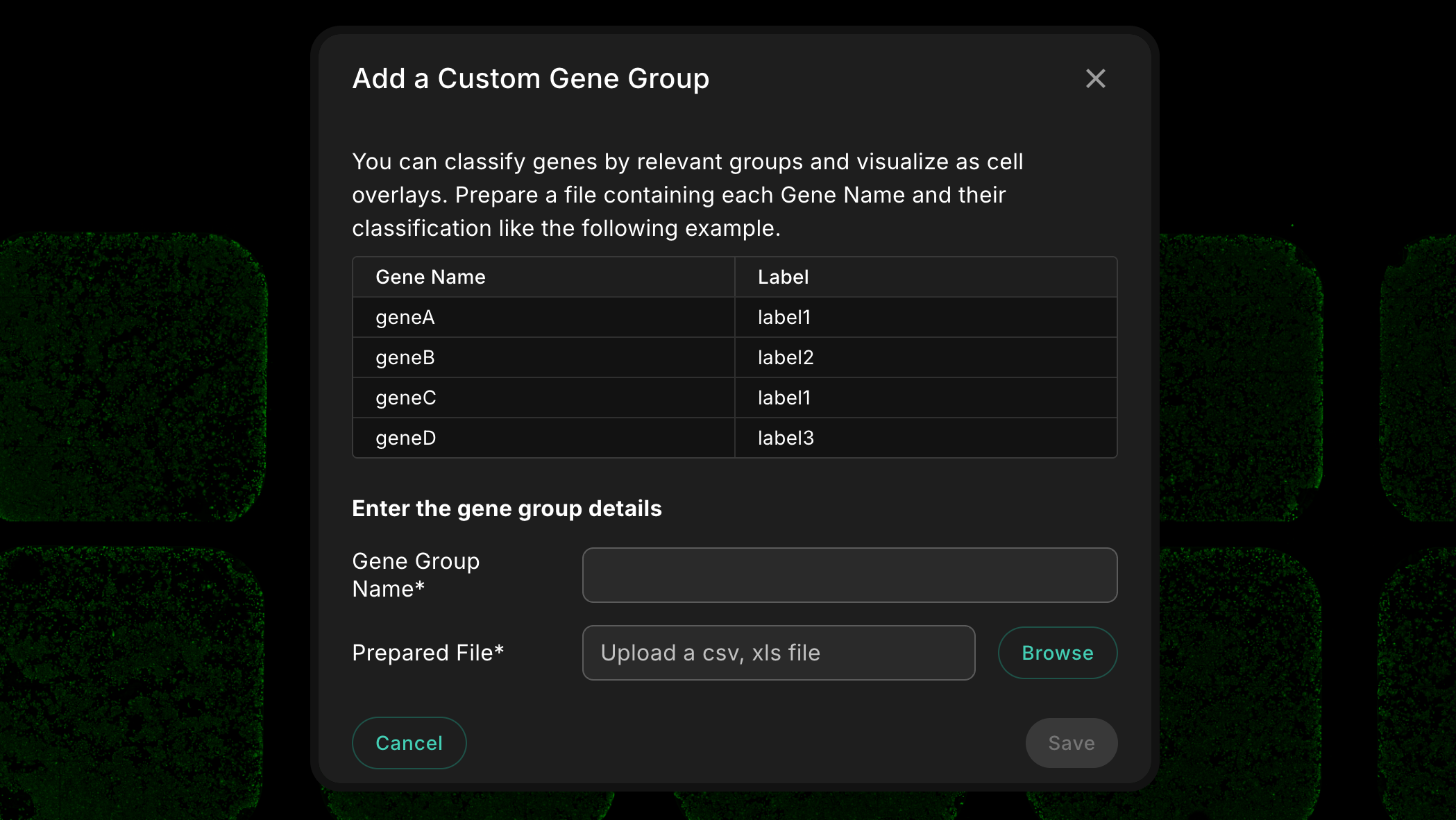
Select Add Gene Group in the Groups tab to upload a custom gene group. In the Add a Custom Gene Group dialog:
- Prepare a CSV or XLS file with two columns: Gene Name and Label. Each row assigns one gene to a label, such as a cell type or pathway. Multiple genes can share the same label.
- Enter a Gene Group Name.
- Under Prepared File, select Browse and choose your file.
- Select Save.
Manage gene groups
Once saved, select a gene group to make it active. The number next to the group name shows how many genes it contains.
- Select the pencil icon to rename a gene group. Renaming does not change the uploaded file.
- Select the trash icon to delete a gene group.
Draw and save cell selections
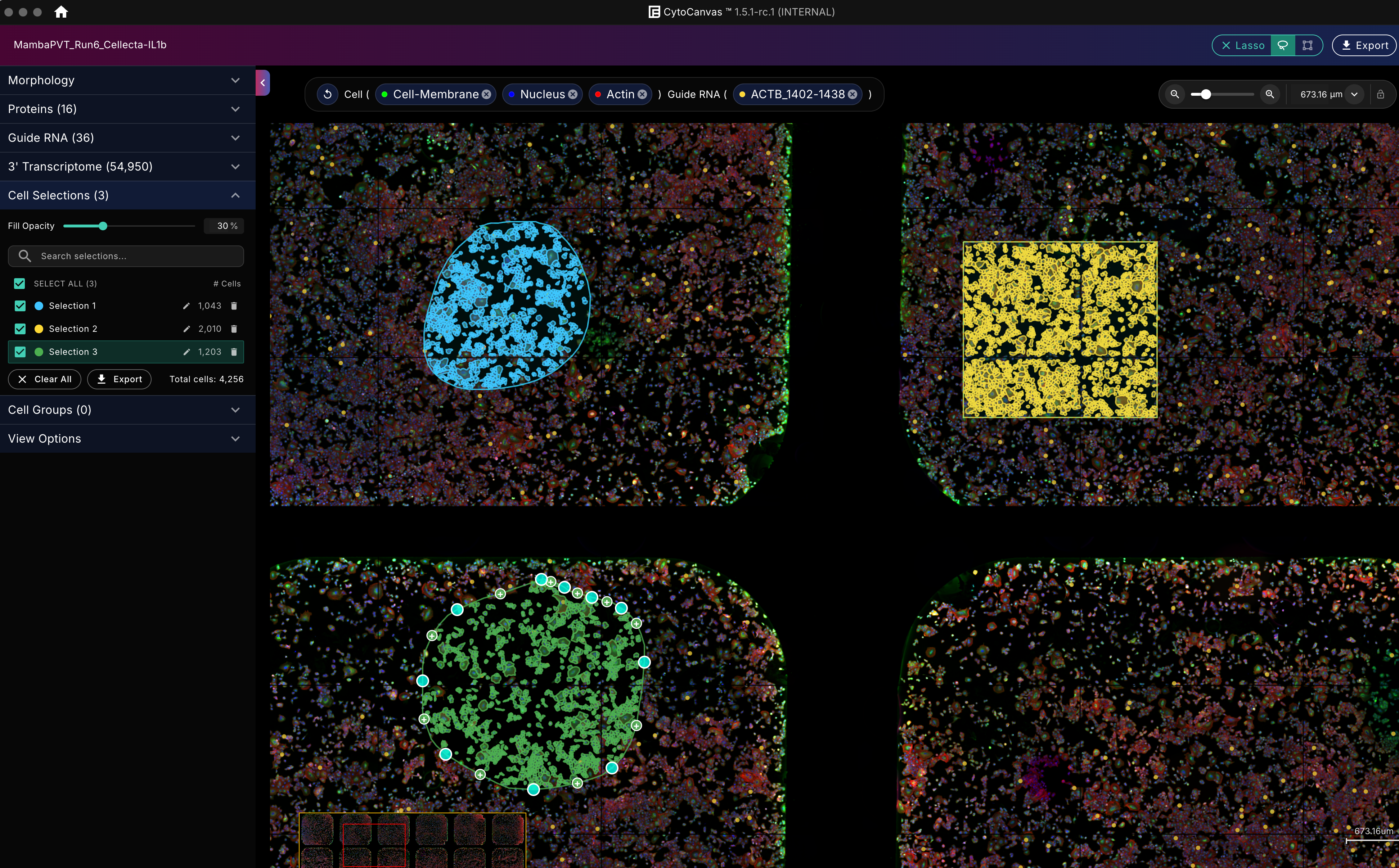
Select the lasso icon in the toolbar to draw a selection on the flow cell and save it as a cell selection. Use selections to isolate a group of cells you want to look at more closely, such as a cluster, a region of interest, or cells with a shared phenotype. Selections are saved to the Cell Selections section of the filter panel so you can revisit them later, and you can export the data for selected cells as a CSV file for downstream analysis.
Create a cell selection
- Select the lasso icon in the toolbar above the canvas to turn on lasso mode. Your pointer becomes a drawing tool.
- Choose a selection shape:
- Freehand lasso: Click and drag to draw an outline around the cells you want to select.
- Rectangle: Click and drag to draw a rectangular area around the cells you want to select.
- Release to complete the selection.
- The selected cells are outlined on the canvas, and the selection is added to the Cell Selections in the filter panel.
- When you're finished, select the X in the lasso button to exit lasso mode and return to navigating the canvas.
Manage cell selections
Each selection appears in the Cell Selections section of the filter panel with its own color and a count of the cells it contains.
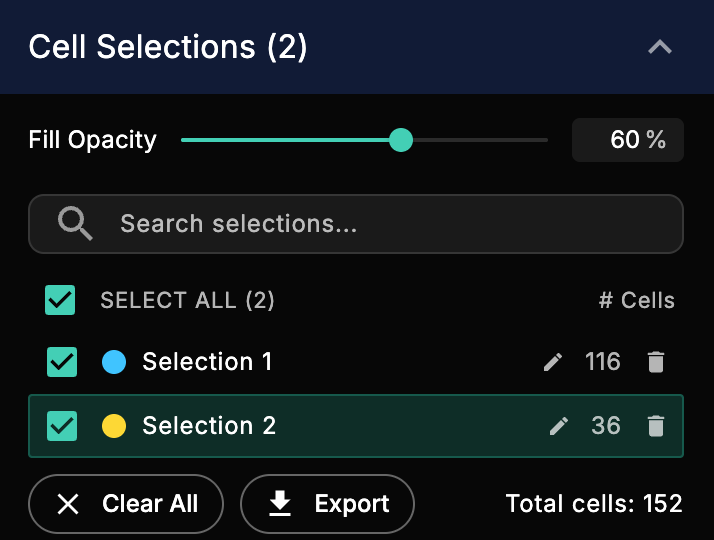
- Select or clear a selection checkbox to show or hide it on the canvas.
- Select Select All to show or hide all selections at once.
- Use the search bar to find a selection by name.
- Drag the Fill Opacity slider to adjust how transparent the selection fill is on the canvas.
- Select the pencil icon to rename a selection.
- Select the color swatch next to a selection to change its color.
- Select the trash icon to delete a selection.
- To include more cells in a selection, select it, then drag the handles on its boundary to expand or reshape it. The cell count updates to reflect the new boundary.
- Select Clear All to delete all selections.
Export cell selection data
Select Export in the Cell Selections section to download a CSV file. Each row represents one selected cell and includes its ID, well, tile, and spatial coordinates.
Cell groups
Cell groups let you classify cells into named categories and visualize them as colored overlays on the flow cell. Use cell groups when you want to compare spatially distinct populations, such as cell types identified from external analysis.
Add a cell group
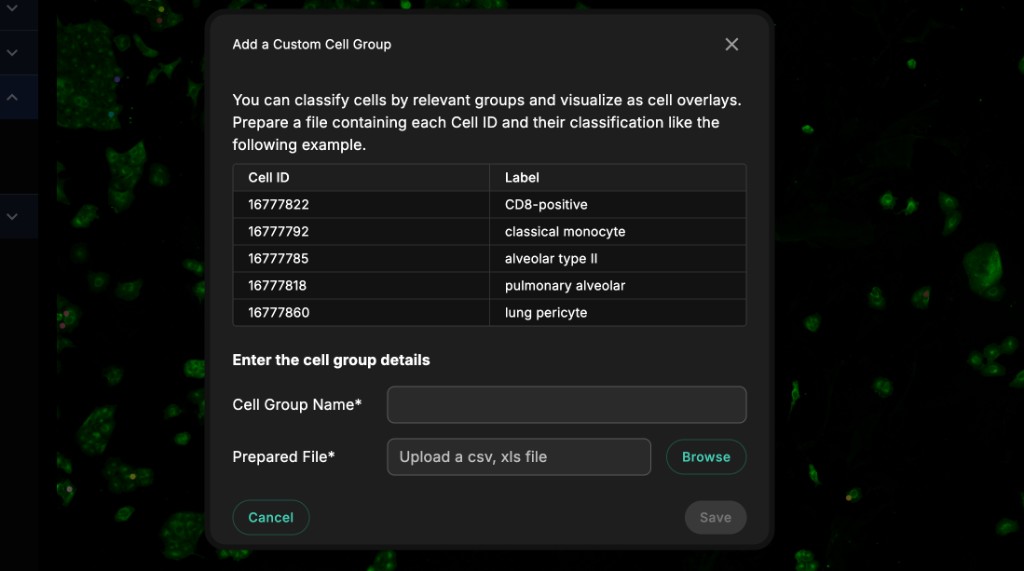
Select Add Cell Group in the Cell Groups section to upload a custom cell group. In the Add a Custom Cell Group dialog:
- Prepare a CSV or XLS file with two columns: Cell ID and Label. Each row assigns one cell to a label, such as a cell type or cluster. Multiple cells can share the same label.
- Enter a Cell Group Name.
- Under Prepared File, select Browse and choose your file.
- Select Save.
Manage cell groups
Once saved, cell groups appear in the Cell Groups section of the filter panel. Each label in the active group is displayed as a category with its own color.
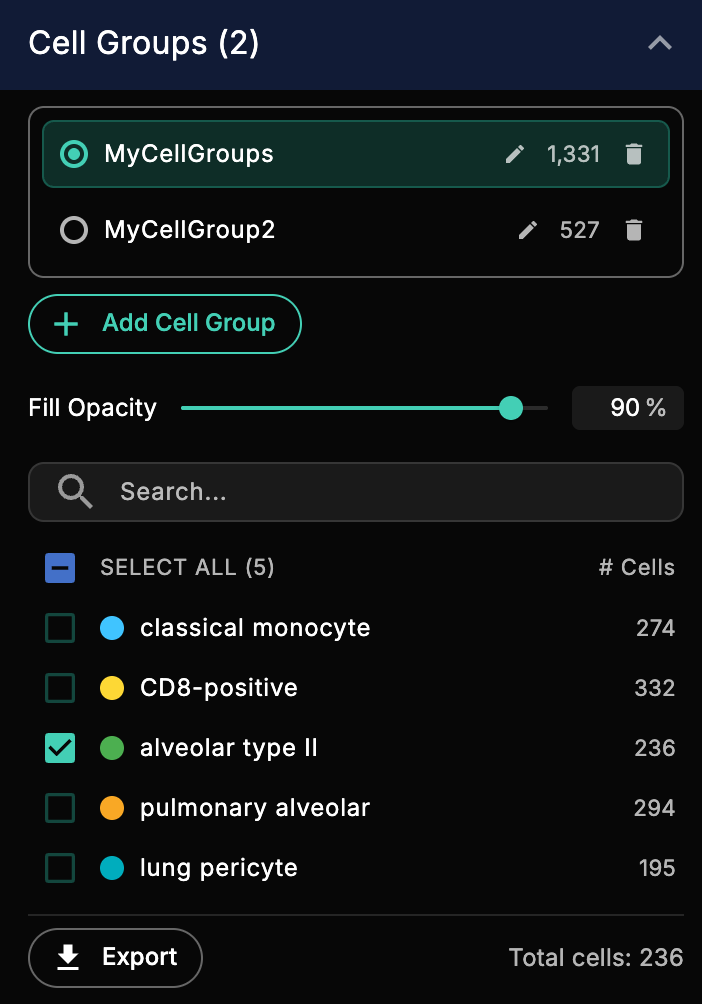
- Select or clear a category checkbox to show or hide all cells in that category on the canvas.
- Select the color swatch next to a category to change its color.
- Drag the Fill Opacity slider to adjust the transparency of the cell overlay.
- Select the pencil icon to rename a cell group.
- Select the trash icon to delete a cell group.
Export cell group data
Select Export in the Cell Groups section to download a CSV file. The file contains a summary of the labels and cell count.
View options
Use the view filter panel to adjust the viewport of the flow cell.
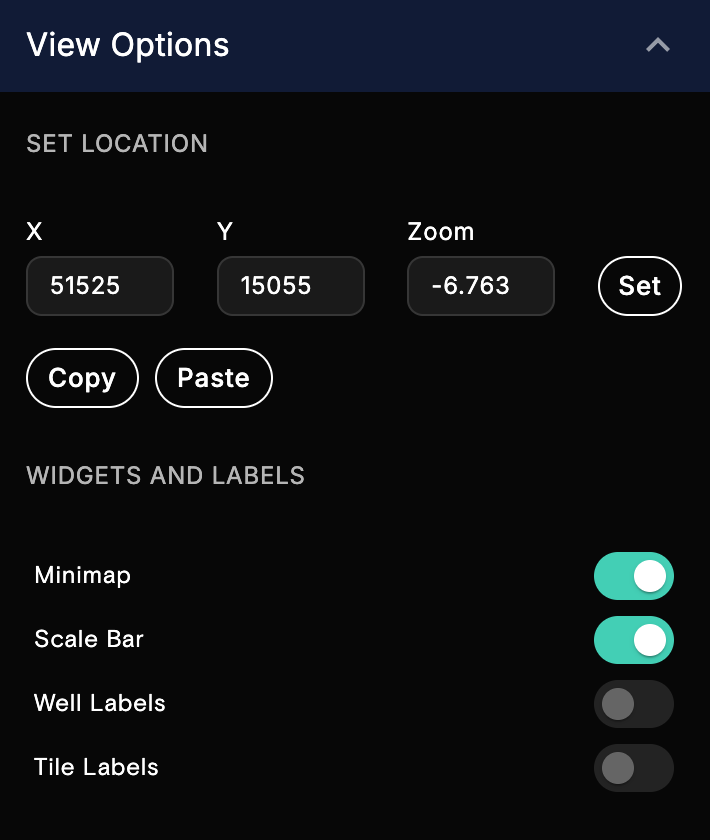
- Set the exact x and y location and zoom level of the viewport.
- Show or hide the minimap.
- Show or hide the scale bar.
- Show or hide the well labels.
- Show or hide the tile labels.
View and undo filter selections
Current filter panel selections are displayed in a filter bar at the top of the screen. Clear them individually or clear all selections and revert to the default view by selecting the reset icon.

Export a flow cell image
Select the Export button in the top toolbar to download a PNG of the current flow cell view. You can choose to hide the scale bar and minimap before exporting.