ElemBio Catalyst
Set up and manage ElemBio Catalyst™ storage and compute.
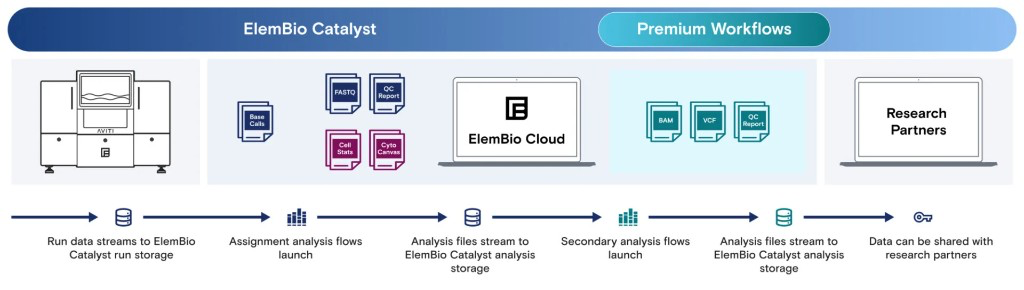
ElemBio Catalyst provided cloud compute and storage integrated with Element Biosciences instruments and ElemBio Cloud. Catalyst™ provides secure, region-specific compute and data management with bioinformatics workflows and agentic tooling to support easy data analysis.
- Store and process your data in your preferred region.
- Protect data end-to-end with a secure architecture.
- Analyze Element system data with the ElemBio Cloud interface.
- Access Element provided bioinformatic analysis
Initial setup
The ElemBio Catalyst subscription automatically includes the following resources that are created and managed by Element on your behalf:
-
Two cloud storage buckets:
- One bucket that stores run data from your Element systems
- One bucket that stores output files from analysis flows
-
Access to data browsing and file downloading features for your runs
-
Access to the complete workflow library
Set up ElemBio Catalyst
- On the Providers page, select ElemBio Catalyst.
- Select the preferred region. For optimal performance, select the closest region. For a list of available regions, see Supported regions.
- Select Get Started! Provisioning takes a few minutes. When setup completes, ElemBio Cloud displays cards for the ElemBio Catalyst provider, storage connections, compute connection, Bases2Fastq™ flow, and Cells2Stats flow.
Data storage retention
The ElemBio Catalyst Data Lifecycle Policy controls how long run and analysis data is kept before it is archived and then deleted. The policy is customizable.
- Defaults: Data is archived 30 days after it is created and deleted 1 year after it is created.
- Archived data: Remains visible in ElemBio Cloud but is not downloadable until you restore it.
- Cost: Archived data reduces usage-based storage costs.
- Availability: Archived data can be restored on request until its deletion date.
Custom workflow file input retention
When you upload a custom file during an analysis launch (for example, a .bed file or custom segmentation file), ElemBio Cloud saves the file in a directory in the ElemBio Catalyst Analysis bucket: {analysis bucket}/inputs/{workflow parameter-name}/{filename}. You can reuse the same file across future launches without re-uploading it.
The ElemBio Catalyst data lifecycle policy does not apply to the /inputs/ prefix, so your custom uploaded inputs remain available for workflow reuse and downloadable unless you delete them.
Restore archived data
To restore archived data, the data must be in the Deep Archive storage class. You can restore archived data from the data browser, Runs Detail page, or Executions Detail page.
- From any data browser, select the archived data that you want to restore.
- Select the archived data files:
- To restore all archived data files in all subdirectories of a prefix, select Restore All.
- To restore multiple archived data files, select the checkboxes, and then select Restore.
- To restore a single archived data file, select the in-line Restore from archive icon.
- (Optional) Select the checkbox to receive an email notification when data restoration is complete.
- Select Start Restore to confirm starting the data restoration. The storage class reports a status of Restoring for up to 24 hours. After restoration begins, you cannot cancel it.
- After the data restoration is complete, confirm that the previously archived data has reverted to the Standard storage class.
Modify the data lifecycle policy
Lifecycle policies affect instrument-generated run data in the ElemBio Catalyst Runs bucket and workflow-generated analysis data in the ElemBio Catalyst Analyses bucket. The lifecycle policy does not apply to user-uploaded custom inputs under the /inputs/ directory in the analysis bucket. For details, see Custom workflow file input retention.
- From the Storage Connections page, identify the storage connection that you want to modify.
- Select More, and then select Manage Data Lifecycle.
- On the Edit Storage page, modify your Data Lifecycle Policy as follows:
- For data archival, toggle Enable data archival to enable or disable. If enabled, set the number of days that you want data archive to occur after data generation.
- For data deletion, toggle Enable data deletion to enable or disable. If enabled, set the number of days that you want data deletion to occur after data generation.
- Select Save.
Sharing ElemBio Catalyst data with an AWS account
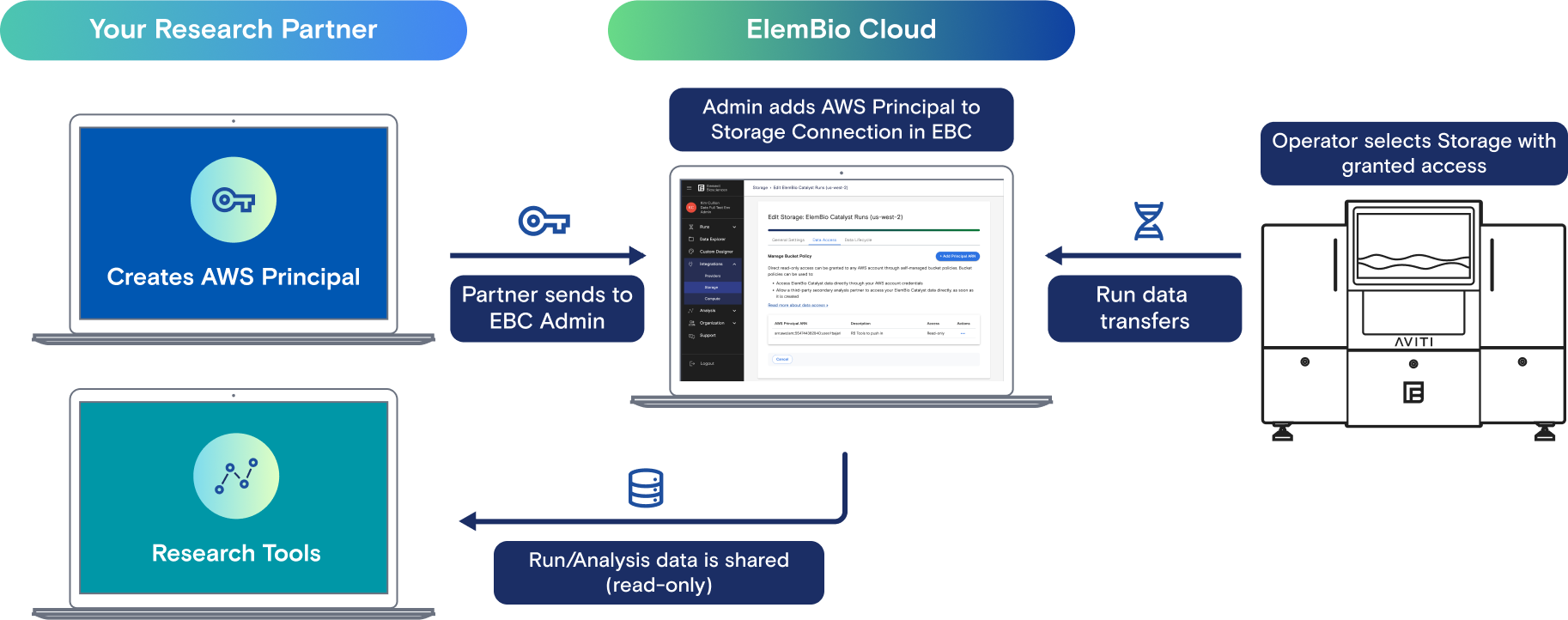
ElemBio Cloud allows you to grant specific types of AWS principals limited, read-only access to a storage connection through an Amazon S3 bucket policy. Eligible principals include an IAM role, an IAM user, or an AWS account.
Read-only access simplifies access management for scenarios where modifying data is not required, such as:
- Reading data into your own AWS account or existing pipelines
- Sharing run or analysis data with research partners for direct download
- Sharing FASTQ files with third-party analysis platforms for secondary analysis
- Sharing data with vendors or other platforms
Set up an AWS principal
When you set up an AWS IAM principal such as a user or role, allowed actions must be explicitly defined by a policy.
-
Create an IAM principal (role or user) in the account that is reading data from the bucket.
-
After you add the principal, apply a policy similar to the following to allow Amazon S3 actions:
Example Principal Policy Statement to Allow S3 Access{"Version": "2012-10-17","Statement": [{"Sid": "ElemBioDataAccess","Effect": "Allow","Action": "s3:*","Resources": ["arn:aws:s3:::BUCKET_NAME", "arn:aws:s3:::BUCKET_NAME/*"]}]}
Grant access to an AWS principal
- From the Storage page on the storage connection card, select More, and then select Manage Data Access.
- Select Add Principal ARN.
- Enter the AWS Principal ARN for the IAM role, IAM user, or AWS account that you want to grant access to.
- (Optional) Enter a description of the account.
- Select Save.
After you add a principal, the Amazon S3 bucket policy grants read-only access to the AWS Principal ARN.
Supported regions
ElemBio Catalyst supports a limited number of AWS regions for storage and compute resources. To request the onboarding of additional AWS regions, contact Element Technical Support.
| Name | Region | Sandbox compute | GPU workflows (Parabricks) |
|---|---|---|---|
| Africa (Cape Town) | af-south-1 | Enabled on request | Enabled |
| Asia Pacific (Taipei) | ap-east-2 | Enabled | Unavailable |
| Europe (Frankfurt) | eu-central-1 | Enabled | Enabled |
| Europe (Ireland) | eu-west-1 | Enabled | Enabled |
| Canada (Central) | ca-central-1 | Enabled on request | Enabled |
| US East (N. Virginia) | us-east-1 | Enabled | Enabled |
| US West (Oregon) | us-west-2 | Enabled | Enabled |