Save views, share, and manage canvases
Save visualization states, share canvases, and manage your workspace.
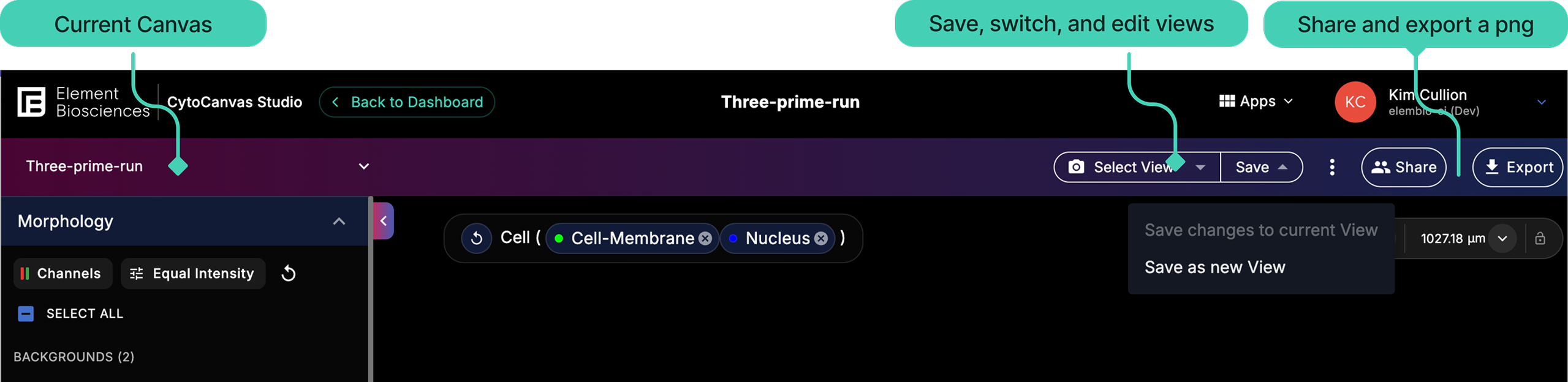
Create a saved flow cell view
A saved view is a snapshot of all visualization settings applied to a flow cell, including the zoom level. Use saved views to bookmark specific visualization states and return to them later, or use the view switcher in the top toolbar to compare two flow cell views. Saved views capture the following selections:
- Selected channels, channel color, and channel contrast limits
- Cell and nuclear boundary display
- Viewport position, zoom level, and view settings
- Selected transcripts and proteins
- Applied cell groups and cell selections
Save a view
- Configure the visualization to the desired state, using the filter panel.
- From the top bar, select the Save button menu.
- Select Save as new view.
- Enter a name and an optional description.
- Select Save View.
The view is saved and can be selected from the view dropdown.
Update an existing view
- With a view selected, adjust the visualization settings as needed.
- From the top bar, select the Save dropdown.
- Select Save current.
The selected view is overwritten with the current settings.
Export a flow cell image
Select the Export button in the top toolbar to download a PNG of the current flow cell view. You can choose to hide the scale bar and minimap before exporting.
Share a canvas
You can share a canvas with your ElemBio Cloud organization or generate an external share link for read-only access.
Share with your organization
- From the Dashboard, select the three-dot menu on the canvas card, and then select Share. Alternatively, from a canvas, select the Share button in the top toolbar.
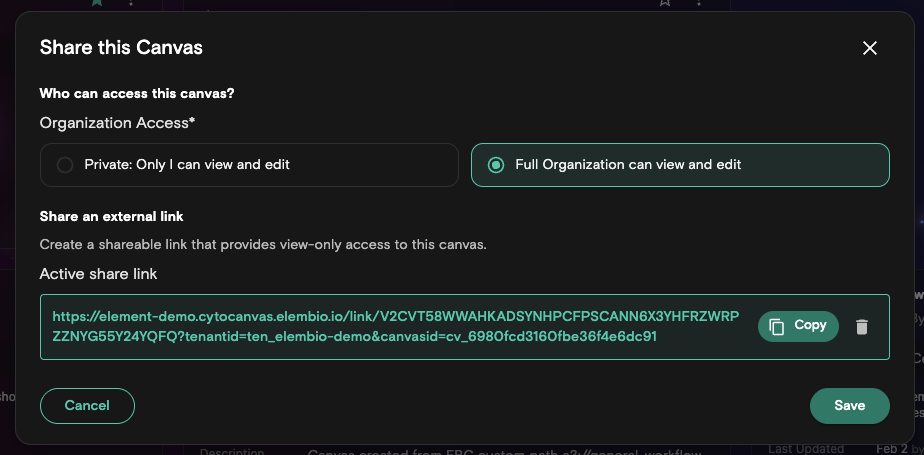
- Toggle the access level to Full organization can view and edit.
- Select Save.
All members of your organization can now see the canvas in the Shared Canvases tab on the dashboard.
To make the canvas private again, toggle the access level back to Private: only I can view and edit.
Generate an external share link
External share links grant read-only access without requiring recipients to have an ElemBio Cloud account.
An external share link grants read-only access to the canvas. When a canvas is opened through an external share link, you can:
- Explore the flow cell view.
- Adjust visualization settings such as channel visibility, colors, and boundaries.
- Export the current view as an image.
Create a share link
- From the Dashboard, select the three-dot menu on the canvas card, and then select Share. Alternatively, from a canvas, select the Share button in the top toolbar.
- In the Share dialog, select Create Link.
- Copy the generated link and share it with your recipient.
- Select Copy and share the link as needed.
Disable a previously shared link
- From the Dashboard, select the three-dot menu on the canvas card you want to manage, and then select Share. Alternatively, from a canvas, select the Share button in the top toolbar.
- Select the trash icon beside the active share link.
- Confirm the deletion.
The link is removed and anonymous access to the visualization no longer exists.
Manage a canvas
Edit canvas metadata
- From the Dashboard, locate the canvas that you want to edit.
- Select the three-dot menu on the canvas card, and then select Manage.
- Update the Name or Description of the canvas.
- Select Save
The canvas is updated with the new details.
Clone a canvas
Cloning creates an independent copy of a canvas, including its views, cell groups, and cell selections. The cloned canvas is named with a (Clone) suffix.
- From the Dashboard, locate the canvas that you want to clone.
- Select the three-dot menu on the canvas card, and then select Clone.
Delete a canvas
Deleting a canvas permanently removes the canvas and all of its saved views, cell groups, and cell selections. Only the canvas owner can delete a canvas.
- From the Dashboard, locate the canvas that you want to delete.
- Select the three-dot menu on the canvas card, and then select Delete.
- Select Delete to confirm the deletion.
The canvas is immediately removed.
Deleting a canvas cannot be undone. All saved views and cell groups associated with the canvas are permanently removed.