Cytos End-to-End Workflows
Explore the end to end overview for Cytos cell screening assays.
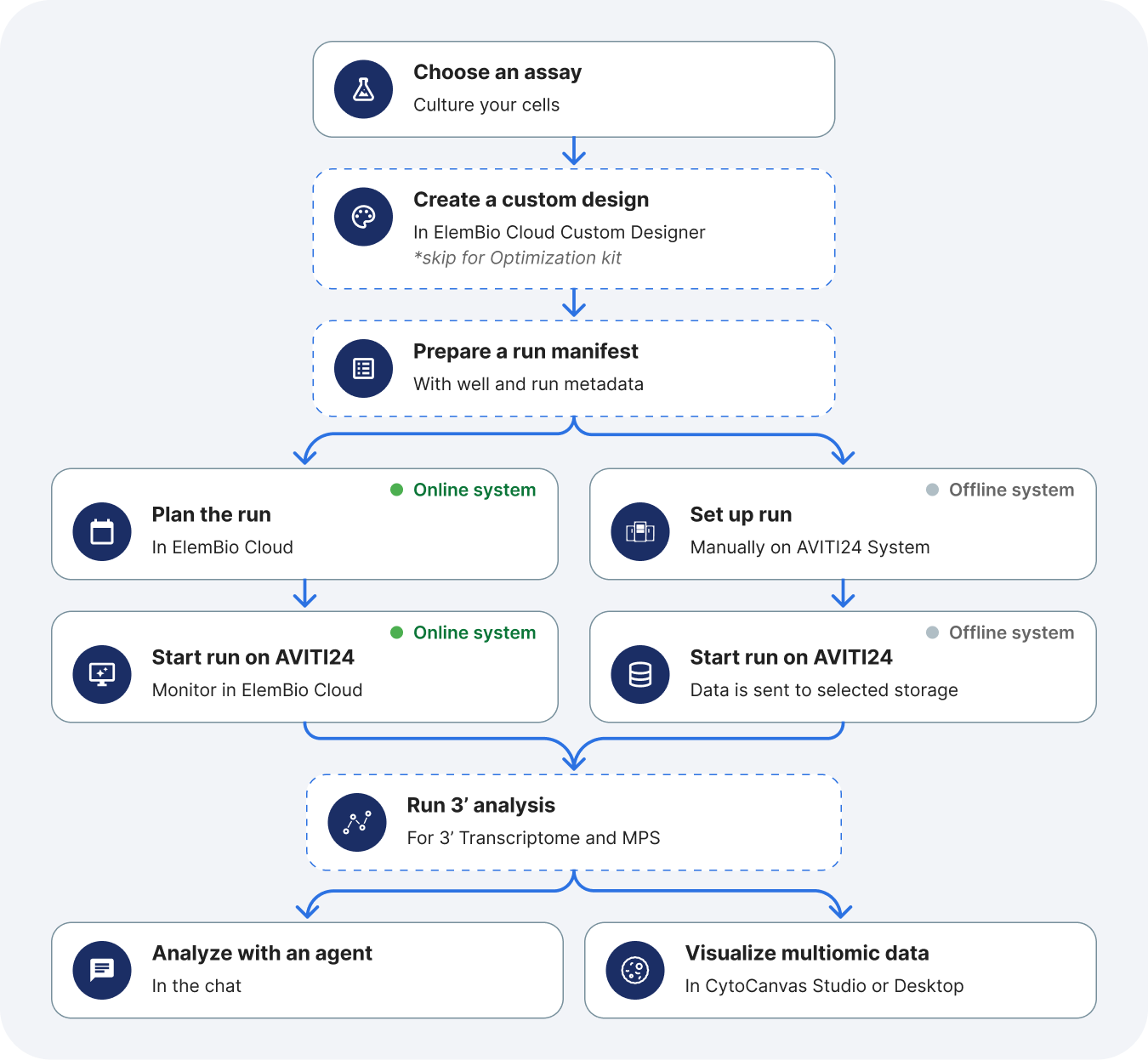
Choose an assay
Choose an assay based on your experimental needs. If you need help, contact your account representative to walk through your experimental needs. Based on your selected assay, the downstream workflow may change slightly. For example, optimization runs skip the custom workflow design. Protein screening and optical pooled screening skip 3' transcriptome analysis. For more information on the various assay types, visit the Cytos Assay Overviews.
Create a custom design
For every assay except optimization, create a custom design in ElemBio Cloud Custom Designer before you plan the run.
| Assay | Custom design |
|---|---|
| Protein screening | Create a custom design |
| Optical pooled screening | Create a custom design |
| 3' Transcriptome | Create a custom design |
| Multimodal pooled screening | Create a custom design |
After you publish the design, manage it in ElemBio Cloud Custom Designer.
Plan the run
In ElemBio Cloud, create a planned run from the assay guide:
| Assay | Planned run |
|---|---|
| Optimization | Set up a planned run |
| Protein screening | Set up a planned run |
| Optical pooled screening | Set up a planned run |
| 3' Transcriptome | Set up a planned run |
| Multimodal pooled screening | Set up a planned run |
Shared actions such as edit, clone, and delete are on Run planning.
Build a cell screening run manifest for every run. When the design includes guide RNA, also prepare a target cell assignment manifest. You can upload the manifests with the planned run or provide them later, but they must be present before the run starts.
If you set up the run manually or on an offline instrument, download the custom design package, prepare your manifests, and provide them during run setup.
Run and monitor
Set up and start your Cytos run on your AVITI24™. For run setup, see the appropriate user guide for your workflow, listed in Cytos Assay Overviews.
If your AVITI24 System is connected to ElemBio Cloud, you can monitor the run via Remote run monitoring. Metric definitions are on the assay metrics page:
| Assay | Metrics |
|---|---|
| Optimization | Run monitoring metrics |
| Protein screening | Run monitoring metrics |
| Optical pooled screening | Run monitoring metrics |
| 3' Transcriptome | Run monitoring metrics |
| Multimodal pooled screening | Run monitoring metrics |
For detailed output information, see run output files.
QC and analysis
Every Cytos run captures cell paint images and cell segmentation, so the first analysis steps are the same for every kit. These steps start from the Spatial Data Object (SDO), the .zarr.zip archive that holds images, segmentation masks, cell boundaries, and one AnnData table per modality. For the archive layout, see Spatial Data Object.
| # | Step | Goal | Tool |
|---|---|---|---|
| 1 | Review run QC | Confirm the run meets the quality checks before downstream analysis. Review well and batch metrics, not only run totals. | Cells2Stats QC report (qc_report.html) and Run Details |
| 2 | Review segmentation | Confirm that cell and nuclear boundaries match the cells in the image. Every per-cell value depends on segmentation. | CytoCanvas Studio |
| 3 | Identify modalities | List the tables in the SDO to see which modalities the run contains. | Load an SDO |
| 4 | Preprocess each modality | Filter cells, then normalize and scale each modality separately. Do not normalize RNA counts and imaging intensities together. | Filter and normalize in the analysis package, Scanpy, or Seurat |
| 5 | Reduce, cluster, and annotate | Reduce dimensions, cluster cells, and annotate cell identities. Methods depend on your experiment. | Scanpy or Seurat |
| 6 | Analyze localization | Test whether cell populations are spatially associated. Methods depend on your experiment. | Squidpy |
| 7 | Report results | Record QC results, filtering thresholds, and analysis parameters with the figures. | CytoCanvas Studio™ exports and analysis notebooks |
For a worked example, see Clustering cells with Python.
Quality checks
A run that fails QC cannot be corrected later through computation. Check the following metrics before you invest time in downstream analysis.
| Metric | Target | When outside the target |
|---|---|---|
| Cells assigned | 50% or more of cells, for each guide RNA target site | Review segmentation. Check for crowding or overconfluence. |
| Assigned density | 250,000 polonies/mm² or more per 3' batch | Review the experiment setup and segmentation. |
| Confluency | 50–70%, lower for neurons | Adjust seeding density. Compare the well thumbnails with the reference images in the Cell Culture Hub. |
| Nucleated cells | More than 90% | Review masks in CytoCanvas Studio and evaluate a different segmentation model. |
For all metrics and thresholds, see the Cells2Stats QC report. If segmentation does not separate neighboring cells, see Evaluating and applying alternate segmentation models.
Typical analysis overview
Each modality has its own preprocessing path. A run contains only the modalities that its kit and design include.
| Modality | Kits | Values | Preprocessing | Typical analysis |
|---|---|---|---|---|
| Cell paint and geometry | All kits | Intensity, texture, and shape features | Select and scale features. The appropriate scaling depends on your plate design. See Imaging tables. | Morphology clustering and phenotype comparison by well |
| Protein | Protein screening, or an add-on for the other kits | Per-cell immunofluorescence (IF) intensity | Same as cell paint | Expression and localization per target, and overlay on RNA clusters |
| Guide RNA | Optical pooled screening and multimodal pooled screening | Integer counts per guide | Not normalized. Keep cells with an assignment confidence above 0.5. | Guide assignment metrics and phenotype by guide |
| 3' transcriptome | 3' Transcriptome and multimodal pooled screening | Integer counts per gene | Filter cells and genes, normalize counts, and select highly variable genes. Methods and parameters depend on your experiment. See Filter and normalize. | PCA, UMAP, clustering, annotation, and differential expression |
The 3' transcriptome data exists only after the Cytos Cell Screening workflow runs.
Analyze with an agent or the analysis package
After the run data is available, you can filter, normalize, compare conditions, and visualize modalities and cell populations with an AI agent or with the analysis package.
Element Biosciences provides multiomics analysis skills that AI agents use to analyze your run data. The skills work with Claude, Cursor, and other agents. To get started, visit the Agent Hub to connect your agent to the ElemBio Catalyst™ ecosystem and compute, or use the multiomics skills locally.
- Local analysis with an agent: Install the multiomics skills in your agent and the analysis package in the environment your agent uses, and then analyze run data that you download from ElemBio Cloud. The skills do not run an analysis without the package.
- Cloud analysis with ElemBio Catalyst: If your organization has ElemBio Catalyst set up, connect your agent to a sandbox with the Sandbox MCP by following the guidance in the Agent Hub. Your agent then uses the skills to analyze your data directly from ElemBio Cloud, with no download.
- Local analysis without an agent: To run your own analysis without AI, install the analysis package on your own computer and work with the run data in Python.
Before your first analysis with an agent, see Getting started in the Agent Hub for how to set up the chat and name your run.
To leverage our analysis package, notebooks, and tutorials, see the following resources:
- Multiomics Python package: Install the package, load an SDO, and filter and normalize its tables.
- Tutorials: Clustering cells with Python, Analyzing an optical pooled CRISPR screen, and Measuring a 3′ treatment response.
- Notebooks: Runnable tutorial notebooks on GitHub. The notebooks stream the example datasets from public Amazon S3, so you do not need to download them first.
Analysis by kit
Each kit adds modalities to the cell paint readout, so the analysis you can run depends on the kit.
Optimization kit analysis
An optimization run captures cell paint only, so an optimization run analysis confirms cell culture and assay conditions before a Cytos protein or RNA assay. An optimization run does not need a custom design or any secondary analysis.
| Readout | What it tells you | Action |
|---|---|---|
| Well thumbnails | Seeding and staining quality across each well | Compare with the reference images in the Cell Culture Hub. |
| Confluency | Whether cells cover 50–70% of the imaged area | Adjust seeding density or surface coating. |
| Cell count and cell diameter | Whether the cell line seeds and spreads as expected | Compare across wells and plate formats. |
| Nucleated cells | Whether segmentation detects cells rather than debris | Review masks in CytoCanvas Studio. |
| Segmentation masks | Whether the default model separates neighboring cells | Evaluate an alternate segmentation model. |
When the readouts match the ideal reference images in the Cell Culture Hub, use the same seeding density and surface coating for a Cytos protein or RNA assay.
Protein kit analysis
A protein screening run measures cell paint and up to 20 protein targets by immunofluorescence. Protein values are continuous intensities, not counts, so analyze them with the imaging path in Typical analysis overview.
| Analysis | What it measures | Applications it supports |
|---|---|---|
| Intensity per target | Protein level in the whole cell, nucleus, and cytoplasm | Target expression, dose response, and pathway activation |
| Nuclear-to-cytoplasm ratio | Movement of a protein between compartments | Transcription factor translocation and signaling studies |
| Comparison by well | Change in intensity or morphology between treatments | Compound screening and mechanism of action studies |
| Clustering on protein and cell paint features | Cell states defined by protein and morphology together | Population heterogeneity and cell type composition |
| Morphology and geometry | Cell size, shape, and texture | Phenotypic screening and cytotoxicity |
| Localization | Proximity between cell populations | Cell-cell interaction studies |
Features beyond the defaults, such as colocalization or texture at custom scales, need a custom CellProfiler pipeline.
Optical pooled screening kit analysis
An optical pooled screening (OPS) run reads the guide RNA in each cell and links each perturbation to the cell morphology and phenotype along with protein, if included. The AVITI24 System assigns guides to cells as part of the onboard analysis, so no secondary analysis is needed for OPS data.
| Analysis | What it tells you |
|---|---|
| Guide assignment per cell | Which guide each cell carries. An assignment confidence above 0.5 indicates one dominant guide. |
| Assignment rate and target dropout | How well the library is represented across cells and wells |
| Targets compared with controls | Whether a perturbation shifts counts or phenotype relative to control targets |
| Phenotype by guide | Which perturbations change morphology or protein intensity |
| Guide identity compared with image clusters | Whether guide identity agrees with phenotype-based clusters |
Assignment confidence is calculated per cell as follows:
- assignment confidence = reads for the guide with the most reads / (total guide count + 1)
- Low confidence can indicate ambient signal, multiple guides in one cell, or failed assignment.
For aan example demonstrating analysis for OPS, see Analyzing an optical pooled CRISPR screen for guide RNA.
3' Transcriptome kit analysis
A 3' Transcriptome run measures the 3' transcriptome and cell paint in the same cells, with optional protein. Protein screening, optical pooled screening, and optimization kits do not include 3' transcriptome data.
The Cytos Cell Screening workflow is required for full analysis of 3' transcriptome data. Onboard analysis on the AVITI24 System does not align or assign 3' reads to a reference genome. The cell × gene matrix appears only in the global-table-ThreePrimeUntargeted table of the SDO that the workflow writes. Use the SDO from this workflow, not the SDO created from onbaord analysis, for downstream analysis of a 3' transcriptome run. The workflow:
- Aligns reads to human refereence GRCh38 using the default Element GTF. Alternately, you can supply a GENCODE GTF
- Writes per-read polony tables with feature-assignment tags for read-level QC
- Creates a new SDO with all reads tagging into a cell × gene matrix to identify read to gene assignment
On ElemBio Catalyst, if configured (see Add a flow), the Cytos Cell Screening workflow launches automatically when a 3' Transcriptome or Multimodal Pooled Screening run completes. This workflow segments cells, demultiplexes base calls, aligns and assigns 3' reads, and builds a Spatial Data Object with the 3' transcriptome alignments included. Track the execution of the workflow via Executions.
To run it outside of ElemBio Cloud, use the multiomics nextflow workflow in your preferred environment.
After the workflow completes, you can run the following analyses on its SDO:
| Analysis | What it tells you |
|---|---|
| Clustering and annotation | Cell types and states from the transcriptome. See Clustering cells with Python. |
| Differential expression between conditions | Genes that change with treatment. See Measuring a 3′ treatment response. |
For a tutorial demonstrating analysis for 3' transcriptome, see Measuring a 3′ treatment response.
Multimodal pooled screening kit analysis
A multimodal pooled screening (MPS) run measures guide RNA, the 3' transcriptome, and cell paint in the same cells, with optional protein.
The Cytos Cell Screening workflow is required for full analysis of 3' transcriptome data with an MPS run. Onboard analysis on the AVITI24 System does link guides to cells but does not not align or assign 3' reads to a reference genome. The cell × gene matrix appears only in the global-table-ThreePrimeUntargeted table of the SDO that the workflow writes. Use the SDO from this workflow, not the SDO created from onbaord analysis, for downstream analysis of a 3' transcriptome run. The workflow:
- Aligns reads to human refereence GRCh38 using the default Element GTF. Alternately, you can supply a GENCODE GTF
- Writes per-read polony tables with feature-assignment tags for read-level QC
- Creates a new SDO with all reads tagging into a cell × gene matrix to identify read to gene assignment
On ElemBio Catalyst, if configured (see Add a flow), the Cytos Cell Screening workflow launches automatically when a 3' Transcriptome or Multimodal Pooled Screening run completes. This workflow segments cells, demultiplexes base calls, aligns and assigns 3' reads, and builds a Spatial Data Object with the 3' transcriptome alignments included. Track the execution of the workflow via Executions.
To run it outside of ElemBio Cloud, use the multiomics nextflow workflow in your preferred environment.
| Analysis | What it tells you |
|---|---|
| Guide assignment per cell | Which perturbation each cell carries, as in an OPS run |
| 3' clustering and annotation | Cell types and states from the transcriptome |
| Guide identity compared with RNA cell type | Whether two independent identity measures agree, globally and per well |
| Differential expression by guide | The transcriptional effect of each perturbation, including within one well |
| Joint RNA and imaging embedding | Whether cell paint, protein, or geometry features separate cell states that RNA alone does not |
Guide identity does not enter PCA or clustering. Use it to color UMAP plots and to group cells for differential expression.
For a tutorial demonstrating analysis for each MPS modality, see Analyzing an optical pooled CRISPR screen for guide RNA and Measuring a 3′ treatment response for 3' transcriptome.
Visualize with CytoCanvas
CytoCanvas Studio is a cloud-based visualization application that allows you to explore interactive single-cell visualization of AVITI24 multiomic data, including proteins, phospho-proteins, and RNA transcripts. Visit the CytoCanvas section to get started. To explore a run on your own computer, use CytoCanvas Desktop.